Donations
Find any gift, see what it paid for, and understand the amounts Givable shows you.
Every gift your organization receives lands in Financials > Donations, whether it arrived through a form, a batch of checks, or a recurring schedule.
Before you start: you need permission to view payments. The same permission covers donations.
Find a gift
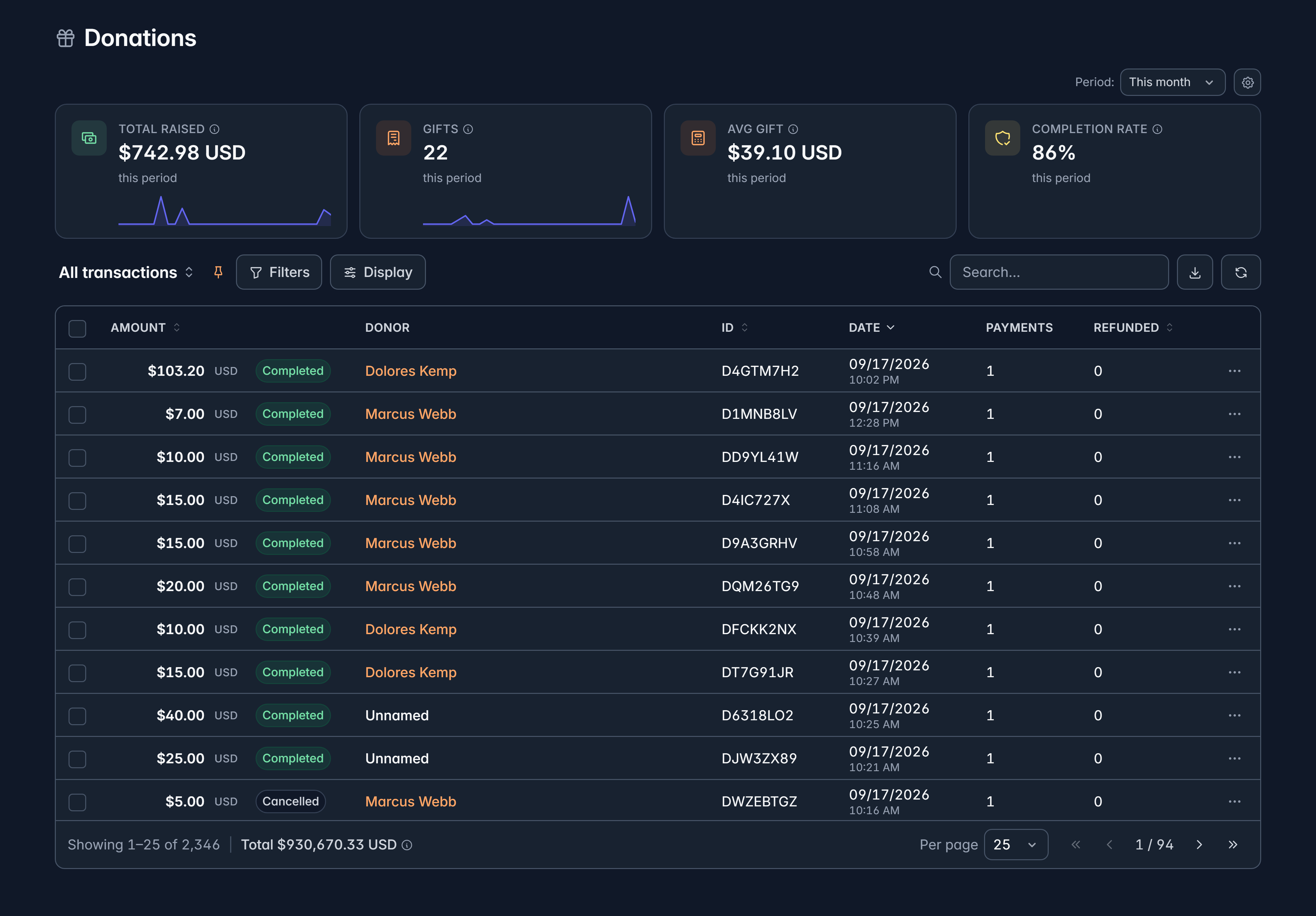
Filter, search and save views exactly as on any other list. See Work with list views.
The columns are Amount, Donor, ID, Date, Payments and Refunded. Select Display to add Balance due, Campaign, Form, Fund or Record type.
Each gift carries a status:
| Status | What it means |
|---|---|
| Completed | The money arrived |
| Pending | Recorded, waiting on the money to confirm |
| In review | Held for a check before it completes |
| Partial | Some of the expected money has arrived |
| Refunded | Given back, in full or in part |
| Disputed | The donor's bank is challenging it |
| Failed | The payment did not go through |
| Cancelled | Stopped before completing |
Open a gift
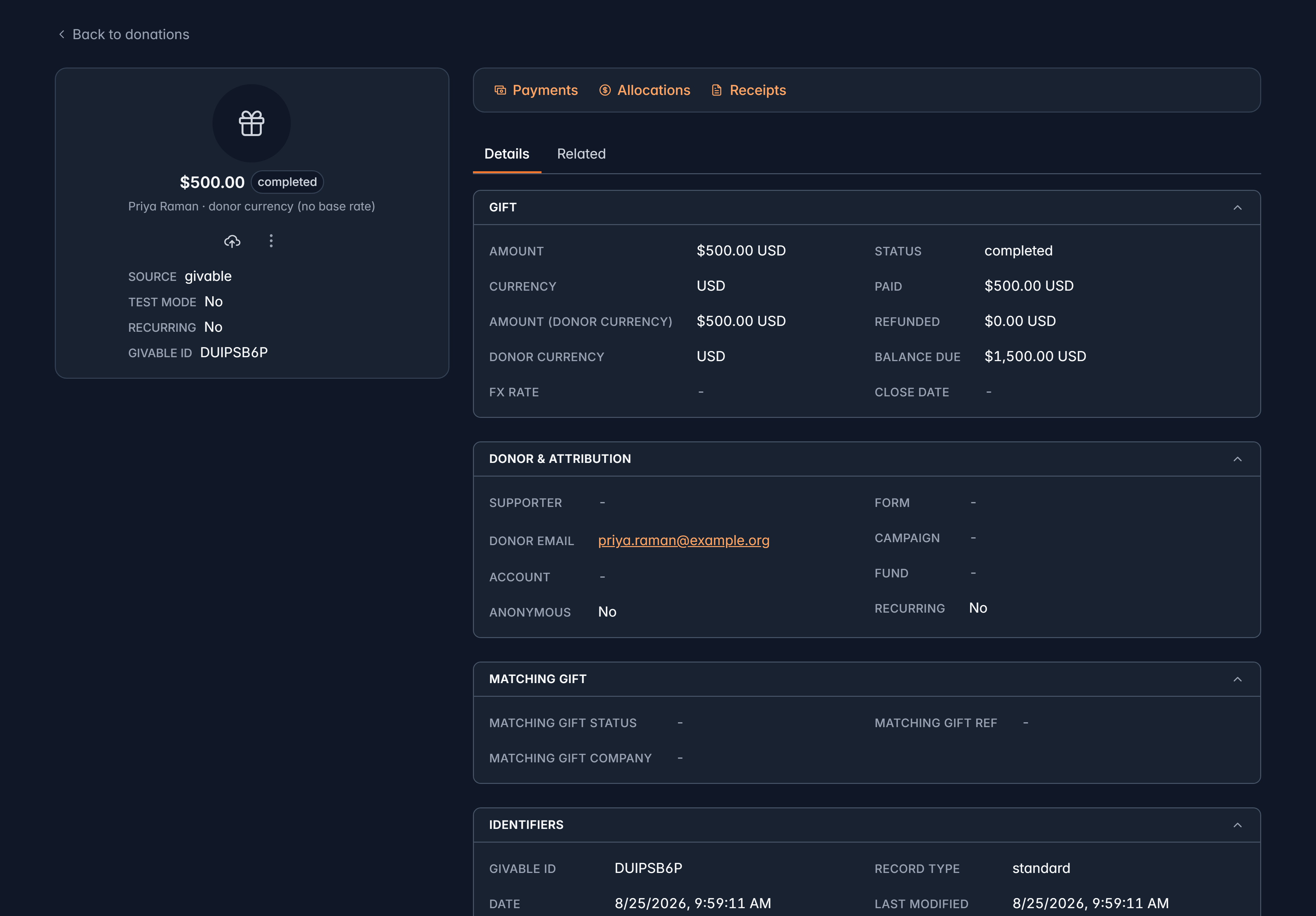
Select View details on any row. A donation record shows:
- Gift: the amount, when it arrived and how.
- Donor and attribution: who gave, and which form, campaign or appeal it came through.
- Tribute: who it honors, when it's in memory or in honor of someone.
- Matching gift: employer matching, when it applies.
- Payments: the money movements behind the gift. Usually one, sometimes several.
- Allocations: how the gift is split across your funds.
- Receipts: receipts issued for it.
Donation pages are laid out by your organization too, so yours may show different fields in a different order. See Page layouts.
A donation record is read-only. It's the history of what happened, so it isn't edited directly. Corrections happen on the payment behind it: that's where refunds and the details you can annotate live.
Understanding the amounts
This trips people up, so it's worth a minute:
- On the donations list, amounts are in your organization's own currency. That way a total means something even when donors gave in several currencies.
- On a payment, amounts are in the currency the donor actually paid in. That's the real money that moved.
- Where a gift has no exchange rate recorded, Givable says so rather than quietly showing you the wrong number.
So a donation and its payment can show different figures for the same gift. That's the exchange rate, not an error.
What you can't do here
- Refund: a refund is a payment action, so it lives on the payment. See Payments.
- Edit the amount, donor or status: the gift record is history.
- Delete a gift: you can delete the payment behind it, which leaves the donation record intact.
Related
Still stuck?
We're here for you, and no question is too small. Tell us what you were trying to do and what happened, and we'll help you get it sorted.