Marketing lists
Build audiences, let donors choose what they hear about, and keep your suppression list clean.
Marketing > Lists is who you send to. It has three parts: your Lists, the Preference centers donors use to choose, and your Suppressions.
Before you start: you need permission to view lists. Creating and editing them, and changing suppressions, need their own permissions.
Two kinds of list
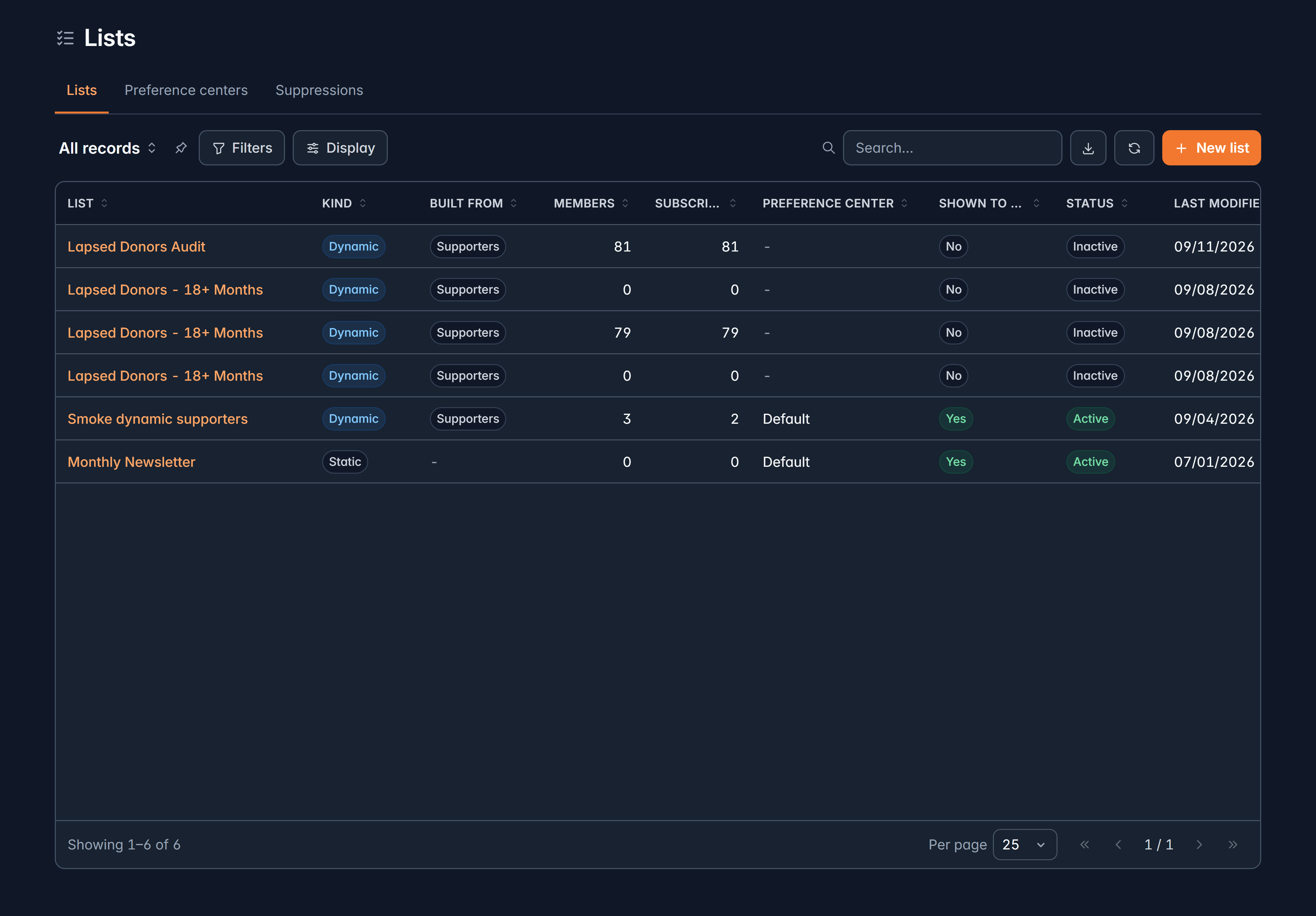
People you add: from a grid selection, an import, a signup form or a text-to-join keyword. It changes only when you change it.
Everyone matching criteria you set, refreshed automatically as records change. "Gave in the last year", "lives in Ontario", "attended the gala".
A list can be built from supporters, accounts or leads.
Create a list
Select New list, choose static or dynamic, then give it:
- A List name, which only your team sees.
- A Donor-facing label, which is what donors see on the preference center.
- A Preference center, if donors should be able to choose it.
Add people to a static list
You don't add people from the list itself. Go to Supporters, Accounts or Leads, select the people you want (filters and select-all carry over), and choose Add to list.
That's deliberate: choosing people belongs where you can search and filter them properly.
Dynamic lists
Set the rules on the Criteria tab using the same filter builder as any list view, with a live count as you go. Members refresh automatically, and Refresh now on the Members tab re-runs it immediately, telling you how many entered and left.
Removing someone from a dynamic list only lasts until the next refresh, since they still match the rules. To keep someone out permanently, change the criteria or suppress them.
Preference centers
A preference center is the page a donor uses to choose what they hear about. You can have more than one, and each can:
- Offer unsubscribe from all.
- Use double opt-in, where a new subscriber confirms by email.
- Act as a hosted signup page.
- Ask why when someone unsubscribes, which is worth turning on: the answers tell you whether you're emailing too often or about the wrong things.
Give each list a donor-facing label and a group, so the page reads like a menu of what you send rather than a list of internal names.
Suppressions
The Suppressions tab is everyone who must not receive marketing email or texts, across your whole organization.
| Why | Meaning |
|---|---|
| Hard bounce | The address doesn't exist |
| Repeated soft bounces | Delivery kept failing |
| Spam complaint | They marked it as spam |
| Added by staff | Someone here added them |
| Unengaged sunset | They stopped opening anything |
| Imported as unsubscribed | They arrived already opted out |
| Texted STOP | They opted out of texts |
| Blocked from inbox | Their mail service refused it |
Most suppressions can't be lifted, and shouldn't be. Only an address added by your own staff can be removed. A bounce, a complaint or a STOP is a fact from outside Givable, and mailing them anyway damages whether your email reaches anyone at all.
Lifting a suppression also isn't consent. It makes an address mailable again; it doesn't subscribe them to anything.
Transactional email, including receipts and confirmations, is unaffected by suppression.
Who's excluded anyway
Whatever your list says, Givable always leaves out global opt-outs, do-not-contact records, suppressed addresses, and anyone not subscribed to a donor-visible list. You don't have to remember it.
Still stuck?
We're here for you, and no question is too small. Tell us what you were trying to do and what happened, and we'll help you get it sorted.