Build a flow
Have Givable do something on its own when a gift arrives, a record changes, or a date comes round.
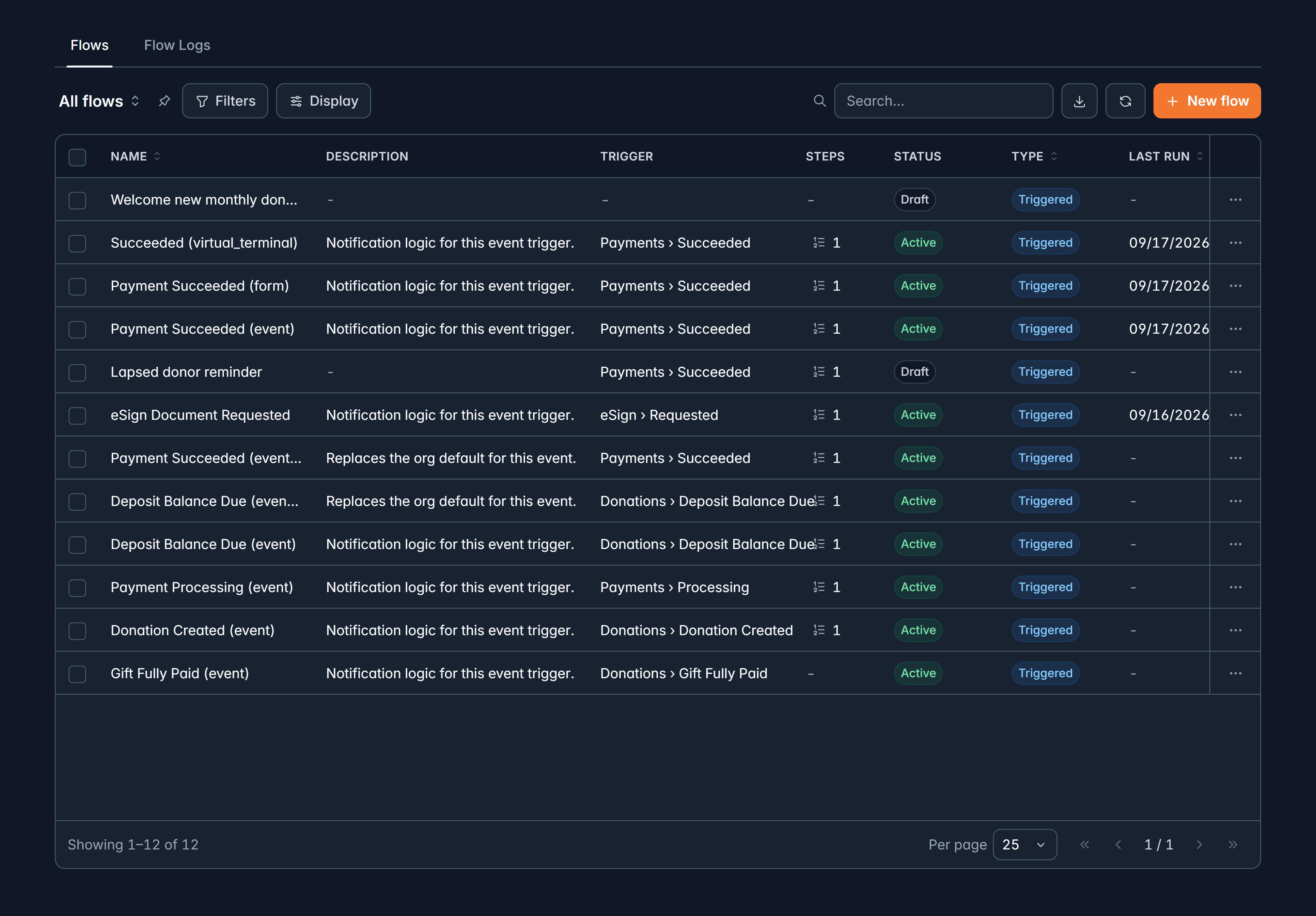
A flow is the thing you would otherwise do by hand every single time. A first-time donor gives: send the welcome email, tag the record, make a task for a call. Outreach > Flows is where you draw that once, and Givable runs it from then on.
Before you start: you need automation access. Without it the page says so, and names the permission to ask an administrator for.
Three ways to start a flow
When an event happens
Something occurs in Givable, like a gift succeeding or a registration landing, and the flow runs for that record.
When a record changes
A record is created, updated or deleted, on any object including your custom objects, and the flow runs for that record.
On a schedule
Daily, weekly or monthly, running once per matching record: supporters, donations, recurring gifts, accounts, campaigns or funds.
A scheduled flow is how you chase lapsed donors or pledge balances without anyone having to remember.
Build one
Outreach > Flows, then New flow
The builder opens full screen on an empty canvas. Nothing is saved until you save it.
Set the start
Select the start card and choose under Start the flow:
- When an event happens: pick the trigger event.
- When a record changes: tick Created, Updated or Deleted, then choose the Object.
- On a schedule: choose the object, frequency, time and timezone.
Narrow it with a record filter
Optional, and usually a good idea. No filter means every matching event runs the flow. A filter means only gifts over $500, or only supporters in one campaign. A gift filtered on a campaign includes event ticket orders and Gift Catalog orders credited to that campaign, not only donations.
Add elements
Select a + on the line and the Add element drawer opens. Search it when you already know what you want.
Set each element up
Select any step and its settings appear on the right.
Save
The first save asks for a name, an optional description and an API name. Saving creates a draft version and changes nothing for anyone yet.
Publish
Publish makes that version live and switches the flow on in one move. Unpublish turns it off again.
A big import or bulk edit runs its flows in the background, a few minutes for a large one, and changes to the same record run in order. A single change of more than 100,000 records starts no flows, so split very large changes. If your organization changes so many records at once that flows pause, the Flows page says so; changes made during the pause do not start flows later.
Build the flow with a narrow filter first, publish it, watch a few real runs in the logs, then widen the filter. It is a much calmer way to discover what you actually meant than turning it on for everybody at once.
What a flow can do
Sends one of your templates to a role: the donor, your administrators, a fundraising page owner, a team captain, the record's creator, a named teammate. Set From, Cc, Bcc and Reply-to, or leave them to inherit from the template, and attach a receipt when one belongs.
The panel tells you whether the template is transactional (always sends) or marketing (honors do-not-contact and email opt-out), which is the difference between a receipt and a newsletter.
Run only when a field changes
On a flow that starts When a record changes with Updated ticked, or one that runs before the record is saved, the filter offers is changed for the record's own fields. Choose True to run only when that field changed in the save, or False to run only when it did not. Combine it with other conditions, for example Status is changed: True and Status is Lapsed.
A new record has nothing to compare with, so is changed does not match on Created, whichever value you choose.
Choose a field, a prior value or a flow value
The field box in a filter is also its search box. Click it to see a list of objects: the record the flow runs on comes first, then its related records, then Prior values, Organization, Running user and Flow and system. Choose one and the list moves to its fields, each with an icon for its type, grouped under headings such as Identity and Contact. Fields the flow already uses are listed first. Or type in the box to find any field without choosing its object first; the matching text shows in bold. Hover over a field to see what it holds.
When a group can't be used here it shows greyed, with the reason. For example, Prior values asks you to tick Updated.
After you test the flow on a record, the list shows that record's value next to each field, so you can see what a condition will compare.
- Prior values are what each of the record's fields held before this save, for example Prior values > Status is Active and Status is Lapsed. They're offered in a flow that runs before the save, and in one that starts When a record changes with Updated ticked. A new record has no prior values, so a condition on one does not match on Created. Gifts and payments do not offer prior values yet.
- Organization holds your organization's name, legal name, support email, phone, website and mailing address, as set in your organization settings.
- Running user holds the first name, last name, full name, email and ID of the team member whose save or action started the flow. When nobody on your team started it (a supporter's portal edit, a form, a gift, an automatic event), there is no running user and a condition on one does not match.
- Flow and system holds Today, Now (date and time), the flow's ID and name, and, in a flow that runs after the save, the flow run ID, the flow event ID and the trigger event.
To compare a field with another value instead of one you type, select the field icon beside the value and choose it, for example Amount is greater than Prior values > Amount, or Close date is before Today. This works with equals, not equals, greater or less than, before and after. For a yes or no field, or a picklist, there is no icon: its choices (for example True and False) are listed first in the value box, above the objects, so you pick a fixed value or another field from the same list.
In Set fields on this record, Another field uses the same list, and a formula can read a prior value as prior. followed by the field's name.
Assign the relationship manager
An Update a record step can set Relationship manager on a supporter or an account. Map Relationship manager, choose Value of the flow, then a team member: Running user: User ID, the record's own Relationship manager, or one from a record it links to. For example, a flow that starts when a supporter is created can make whoever added them their relationship manager, or copy their account's relationship manager.
- The step saves the change straight away. Sending it to Pending updates isn't offered for this field.
- The team member must still be an active member of your team when the step runs, or the step fails and run history says why.
- When there is no team member to copy (no running user on a portal edit, a form, a gift or an automatic event, or an account with no relationship manager), the step leaves the relationship manager as it is. It never clears one.
- Whether you may read the field you copy from is checked when the flow is saved and published; whether you may edit Relationship manager is checked every time it runs.
- A team member field in an email or a value shows the team member's ID, not their name. Use Running user values for a name or email.
- A relationship manager is emailed when someone in their portfolio gives, so a flow that reassigns many records changes who hears about those gifts.
The Running user and Organization values can also fill other fields in a record step, for example the running user's email into a text field.
Before the record is saved
A flow that starts When a record changes can also run before the record is saved. Set When it runs to Before saving, choose the object (supporters, leads, accounts or one of your custom objects), and tick Created, Updated or both.
What it sets is part of the same edit: one save, one entry in the record's history. Use it to fill in a field from others, or to stop a save that breaks one of your rules.
A before-save flow holds only these three. Anything that sends, waits or changes another record belongs in a flow that runs after the save.
- Runs as. The person saving the record uses their access to fields: a field they cannot edit is left alone. The system sets any field the flow names. A specific user uses that user's access, checked at every save; if they lose it, the flow stops. Only an administrator can publish a flow that runs as the system or as a specific user.
- Run order. When several before-save flows run on the same object, lower numbers run first, and each sees what the ones before it set.
- Switch off after. If a before-save flow fails, the save stops and the message names the flow. After this many failures in a row (5 unless you change it, up to 20) the flow switches itself off, so one broken flow cannot hold up every save. A save that works resets the count, and publishing the flow again turns it back on.
Fields under approval are never changed by a before-save flow. A field waiting for approval keeps its current value until the change is decided.
When a step goes wrong
Every action carries an On failure setting: Stop the flow, or Continue anyway.
You can also give a step a fault path: a separate branch, drawn in red, that runs instead when that step errors. Use it to tell somebody that the thing which should have happened did not.
Versions, and changing a live flow
The flow name in the header opens Version history. Every save is a version, the live one is tagged Published, and you can open an older one to read it without touching what is running. Saving that older version is how you roll back.
The chip beside the name tells you where you stand: Draft, Published, or Changes not live when you have saved edits sitting over a published flow. That last one matters, because saving is not publishing.
Publish stops and tells you when something is incomplete. A panel lists exactly what to resolve, step by step and field by field, rather than letting a half-finished flow loose on your donors.
Test it before anyone gets an email
Save the flow first, then select Test. The test panel opens at the bottom: pick the record to test with on the left (your most recent records are listed first, or search by name or Givable ID), then select Next. The flow runs as a dry run: no emails are sent and no records change. Each step lights up on the canvas in turn and appears in the panel as the test reaches it.
- The canvas lights the route the record took, and dims the steps it never reached.
- The Test run panel lists every step with how it went. Select a step, in the panel or on the canvas, to see its Input (its settings, filled in with the record's values) and its Output (what it did, or would have done). Dates and times show in your organization's time zone. The copy button on each copies it as JSON.
- Record filter shows each condition and the value it saw, so you can see why a record would or would not run.
- A test does not wait at a Wait or Wait for Event step. It notes how long the flow would wait and carries on.
Select Test again after a change to rerun it with the same record, or Change record to pick another.
Related
See what ran
Flow Logs, and what to do about a failure.
Notifications
The messages Givable already sends, and how to word them.
Still stuck?
We're here for you, and no question is too small. Tell us what you were trying to do and what happened, and we'll help you get it sorted.