Notifications
Control the emails Givable sends automatically when something happens.
Automations > Notifications lists every message Givable can send when something happens: a gift arrives, a registration completes, a recurring card fails. Open one to choose who it goes to and what it says.
Before you start: changing notifications needs administrator access or the automation permission. Without it you can look but not change.
Reading the list
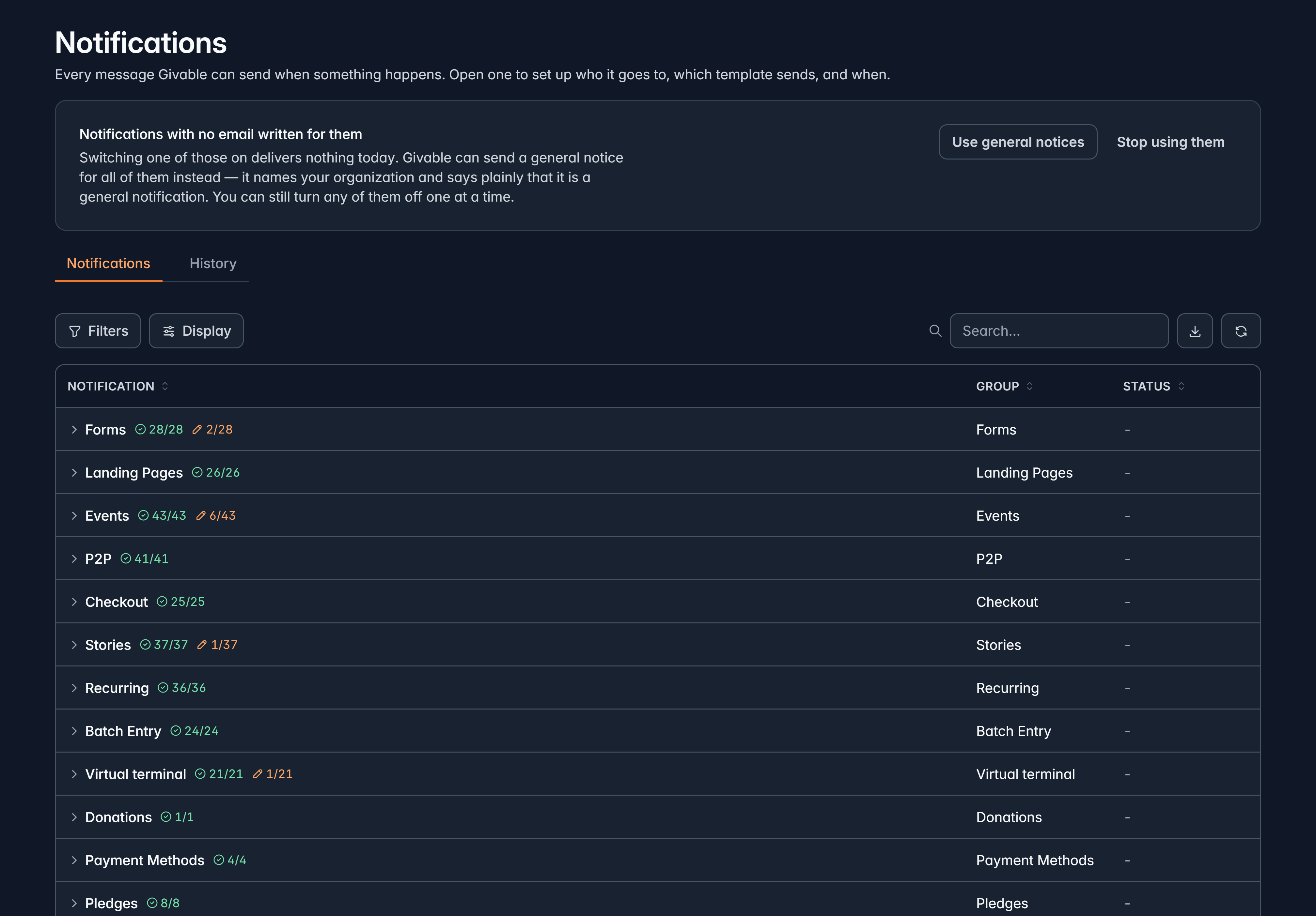
Notifications are grouped by where the moment happens, so donation messages sit together, event messages sit together, and so on. Each row shows:
| Column | What it tells you |
|---|---|
| Status | On or Off |
| Availability | Built means Givable sends it today. Not built means nothing triggers it yet |
| Content | Whether you're using Givable's wording (Default) or your own (Customized) |
| Recipient | Who receives it |
Some notifications are listed but not built yet. Their switch is deliberately disabled: turning one on would do nothing, so Givable doesn't pretend otherwise. Anything you set up on one is kept, and starts working when the notification does.
Turn one on or off
Hover the row and use the on/off control.
If any individual record has its own version of that notification, Givable asks twice: once to turn the notification off, and once to decide whether those custom versions stop too. Read the second question: closing it keeps the custom versions running, which is usually what you want when you're only changing the default.
Notifications with no email written yet
Many notifications don't ship with wording, so switching one on would send nothing.
Rather than leave you guessing, Givable offers to send general notices for all of them: a plain message that names your organization and says what happened. The card at the top of the list turns that on or off for everything at once, and you can still switch individual notifications off.
Turn general notices on if you'd rather people hear something than nothing, then replace the ones that matter with your own wording. A receipt or a registration confirmation deserves your voice; an internal alert usually doesn't.
Change who gets it and what it says
Open a notification to reach its Setup, which is built from actions, checked in the order you arrange them:
- Name the action, for your own benefit.
- Email template: the wording it sends.
- To: a person on the record that triggered it, everyone with a role, a specific user, or specific addresses.
- From and Reply-to.
- Only when: conditions, so a major gift can be thanked differently from a $10 one.
- Send: immediately, or after a delay in minutes, hours or days.
Two settings shape how they run together:
- When several actions match: only the first, or every one.
- Include a fallback action: runs when nothing else matched, so the moment never passes silently.
Order your actions from most specific to most general, and keep a fallback at the bottom. That way a first-time major donor gets the special message and everyone else still gets thanked.
See what was actually sent
The History tab on any notification records every time it fired, what it decided, and why, including when something failed. The History tab on the list page is the same thing across your whole organization, with each message's recipient, status and whether it was opened.
It's the first place to look when someone says they never got an email.
Still stuck?
We're here for you, and no question is too small. Tell us what you were trying to do and what happened, and we'll help you get it sorted.