Enter a batch of gifts
Record a stack of checks or cash quickly, with totals that have to match before anything is committed.
Batch Gift Entry is for the deposit on your desk: a pile of checks, a cash box, a spreadsheet from an event. You tell Givable what you expect to enter, type the gifts, and it refuses to commit until the two agree.
Before you start: you need permission to create batches, and permission to commit them to finish one. Entry is designed for a desktop: on a phone you can review a batch but not type one.
The short version
Create the batch
Enter the expected number of gifts and the expected total from your deposit slip.
Type the gifts
One row each, in a grid built for speed.
Save and fix what's flagged
Givable checks every row and marks the problems.
Commit
Real gift records are created and the batch locks.
Create the batch
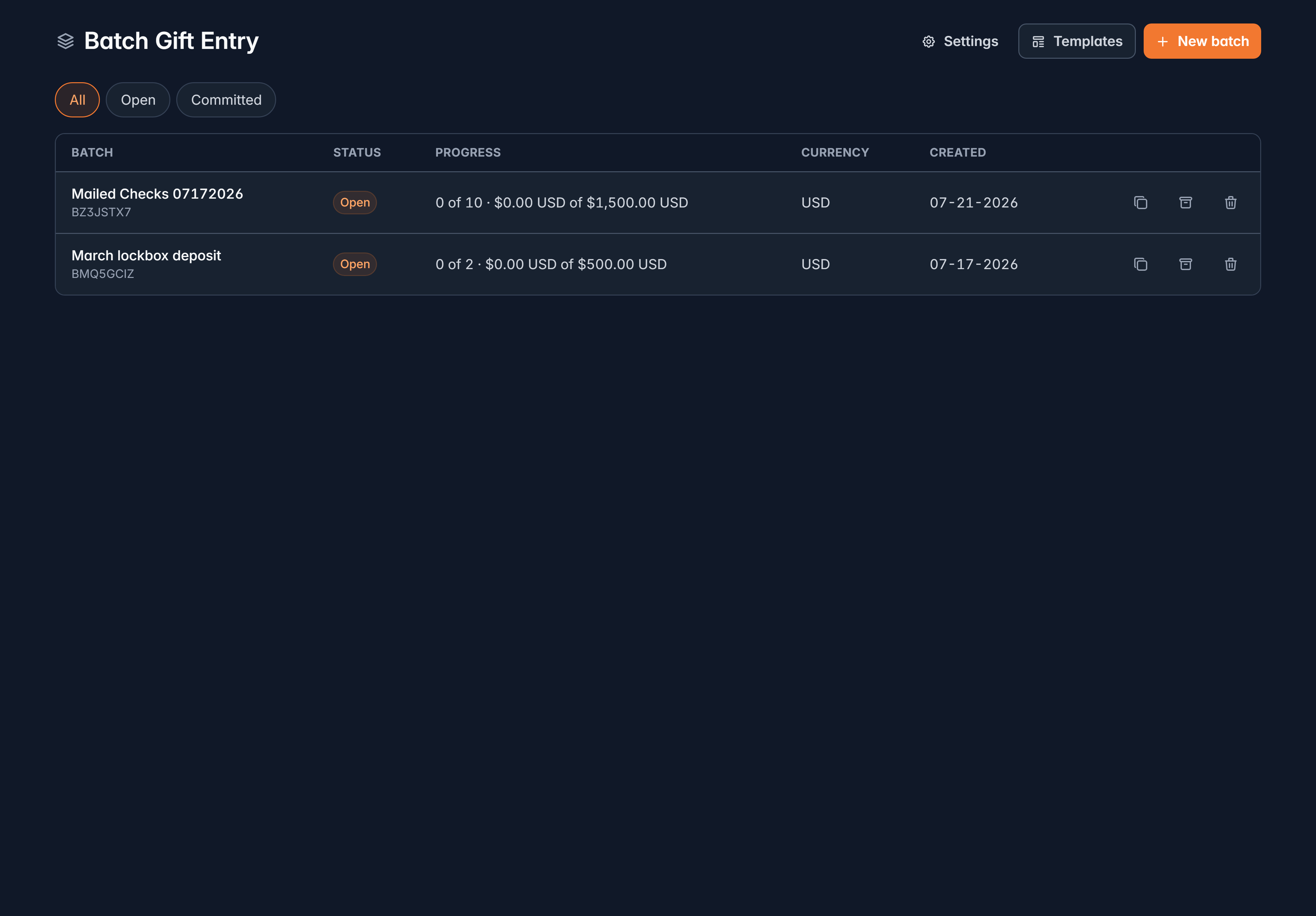
From Financials > Batch Gift Entry, select New batch and fill in:
- Name, for example "Mail received Jul 17"
- Expected gifts and Expected total, taken from your deposit slip. These are the commit gate, so enter what the bank says, not what you hope to find.
- Currency
- Entry template, which decides which columns you see. No template (all fields) shows everything.
- Issue receipts on commit: when on, donors with an email address get one, and the rest are queued for print.
Type the gifts
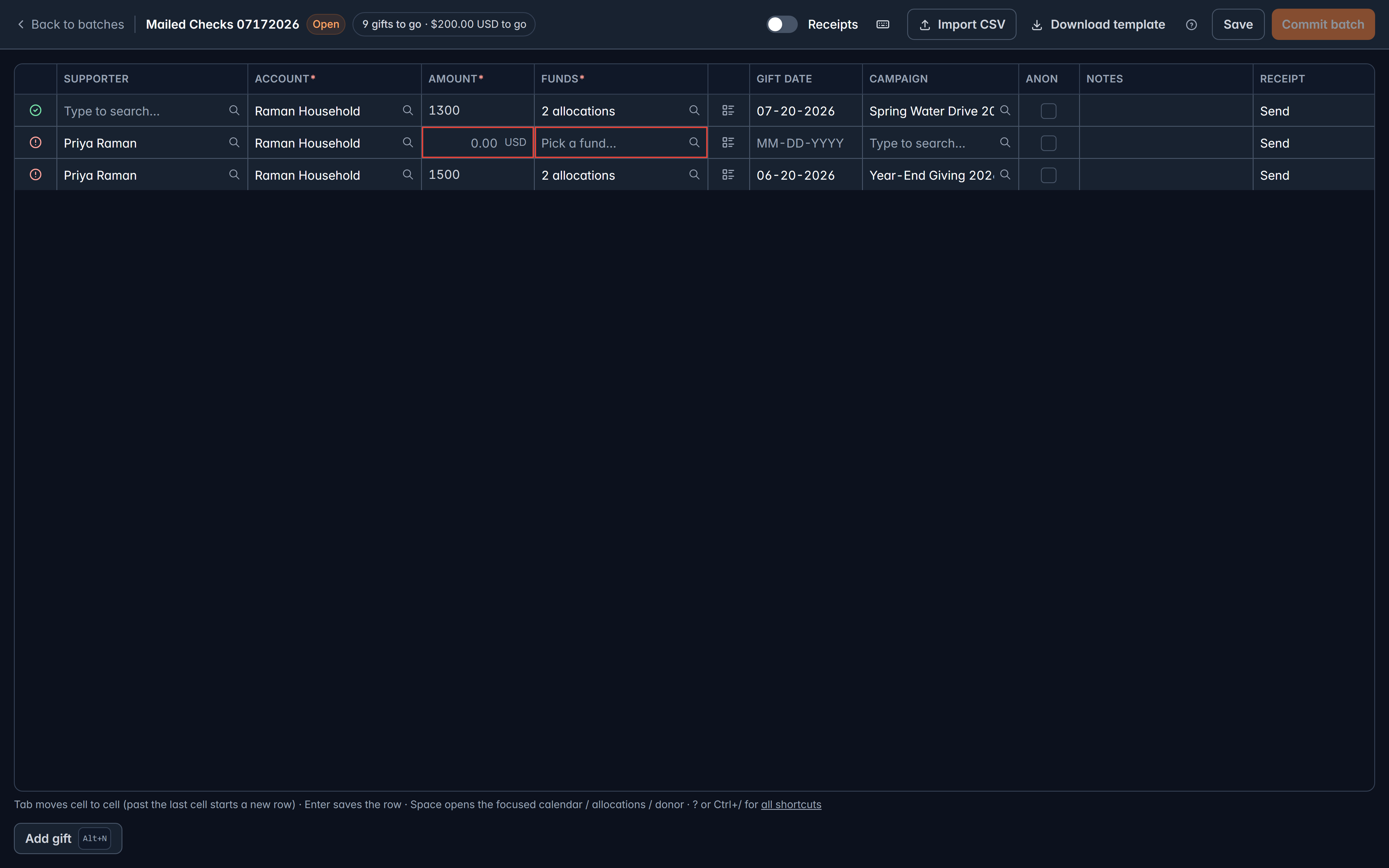
The entry screen fills the window, with your progress in the top bar: how many gifts and how much money remain, counting down as you type.
Each row takes a Supporter or Account, an Amount, and one or more Funds. Depending on your template you may also have Gift date, Method, Reference #, Check date, Campaign, Anon, Notes and Via (sponsor).
Payment methods available: Check, Cash, DAF, IRA / QCD, Stock, Wire / ACH, In-kind and Other.
Press Alt + N to add a row without reaching for the mouse, and check the Keyboard shortcuts button for the rest. It's worth two minutes before a big deposit.
A donor who isn't in Givable yet is fine. Enter their details on the row, and their supporter record is created when the batch commits.
Import a spreadsheet instead
Select Import CSV and use CSV format help for the exact columns. Useful to know:
- Amounts are plain decimals in the batch's currency.
- To split one gift across several funds, repeat the row with the same gift reference.
- Leave the supporter ID blank and fill in the supporter columns (a last name plus an email or phone, at minimum) to have the supporter created at commit.
- Custom fields are typed into the grid after importing.
Save and fix problems
Save checks the whole batch and reports how many rows are valid and how many need attention. Problems are flagged on the cell, so you can work down the list.
Commit
Commit batch stays disabled until two things are true, and the button tells you which is blocking:
- No rows need attention.
- The totals match: the same number of gifts and the same amount you entered when you created the batch.
Confirm, and Givable creates the real gift, payment and allocation records, creates any missing supporters, issues receipts if you asked for them, and locks the batch.
A committed batch is locked. Corrections afterwards are refunds, not edits. It's worth a final look at the flagged rows before you commit.
If some rows fail, the batch shows Partially committed with the failures flagged. Fix them and select Retry commit.
The deposit report
Once committed, the printer icon on the batch row opens a Deposit report: totals By payment method and By fund, with a grand total. Select Print for a copy to staple to your deposit slip. It regenerates from your data, so you can print it again whenever you need.
Templates save setup time
If you enter the same kind of deposit regularly, build a template under Templates on the Batch Gift Entry page. A template chooses which columns appear and in what order, sets defaults, and can stamp hidden values on every gift in the batch. Lockbox checks, a phonathon and year-end mail each deserve their own.
Still stuck?
We're here for you, and no question is too small. Tell us what you were trying to do and what happened, and we'll help you get it sorted.