Roles and permissions
Use the four standard roles, or build your own to give people exactly the access they need.
A role decides what someone sees and can change. Every team member has one. Settings > Team > Roles lists them.
Before you start: editing roles needs administrator access or the permission to edit roles. Changing whether a role reaches subaccounts needs administrator access.
The four standard roles
These ship with Givable and cover most teams:
| Role | For |
|---|---|
| Administrator | Full access, including settings, team, roles and subaccounts |
| Finance | Accounts, transactions, pledges, recurring gifts and exports. Can see supporters and settings but not change them |
| Gift Entry | Entering gifts: transactions, pledges and recurring gifts, plus full access to supporter records |
| Marketing | Campaigns, forms, pages and templates, with the ability to view supporters and export lists |
Standard roles can be assigned but not edited, since Givable maintains them. To make your own version, select Clone role and adjust the copy.
Create a custom role
Create role
On the Roles tab, select Create role, or clone a standard role to start from its permissions.
Name it for the job
"Event volunteer" or "Read-only auditor" beats "Role 2". The description shows in the role list and when someone picks a role, so it's worth a sentence.
Choose permissions
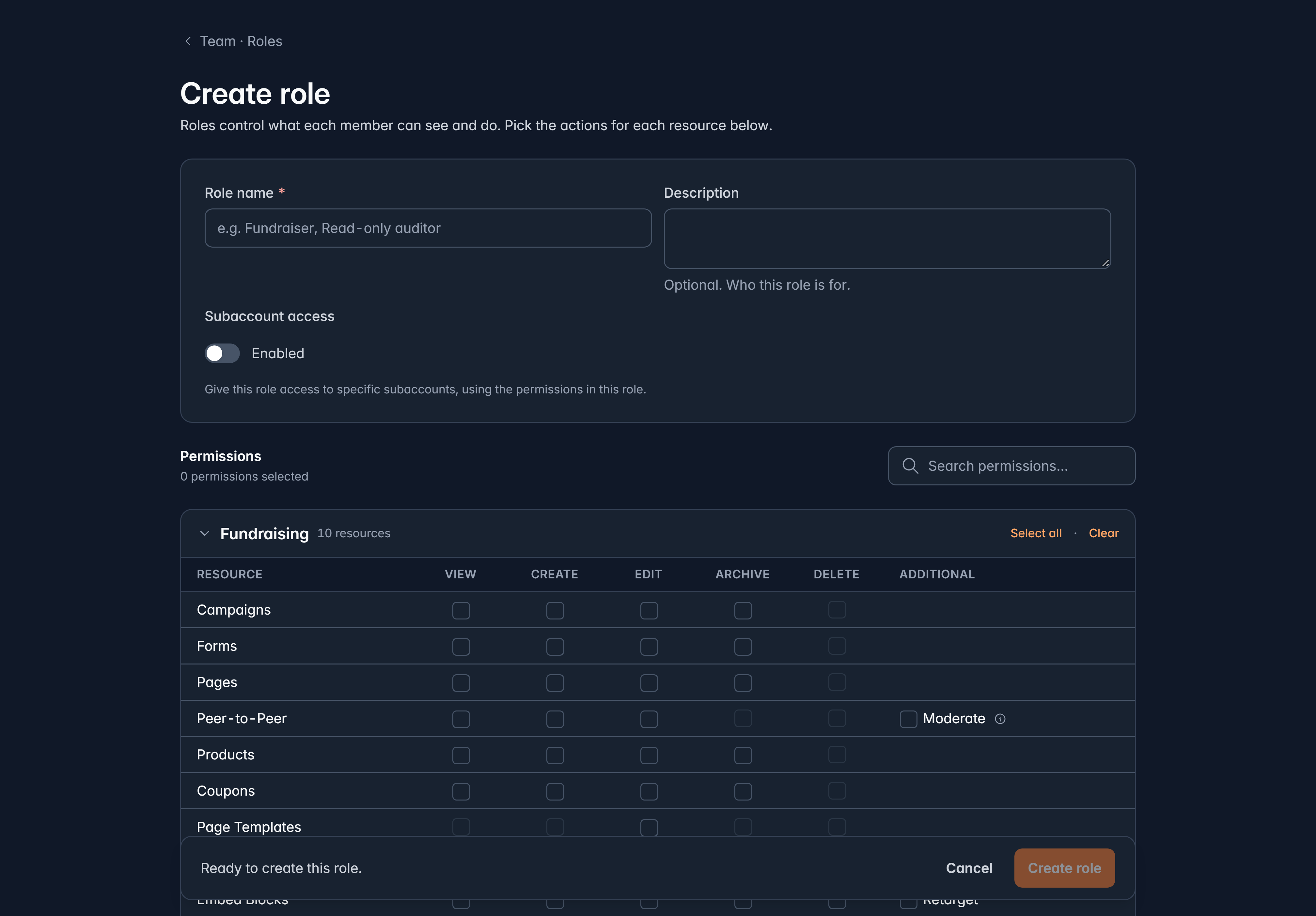
Permissions are grouped by area, with a row per thing (supporters, donations, forms) and a column per action: view, create, edit, archive, delete.
Use Select all or Clear on a section to move quickly, and the search box to find one thing.
Save
Existing members with that role pick up the change on their next action.
Two helpful behaviors while you're picking:
- Ticking any action turns on view for that thing, because you can't edit what you can't see. Turning view off clears the rest.
- Some permissions depend on others. Givable tells you before it happens: granting shows what will be added, removing shows what stops working. Read the list rather than clicking through it: it's the difference between a role that works and one that half works.
Start from the smallest access that lets someone do their job, then add. It's much easier than working out later why a volunteer could see your payout history.
Roles across subaccounts
If your organization has subaccounts, a role can reach into them. Turn on Subaccount access and choose which subaccounts, and the role's permissions apply there too.
Without it, the role stays within this organization.
Archive a role
Archive role hides a role you no longer use. It only works when nobody has it, so reassign those people first. Givable tells you how many need moving. Archived roles can be reactivated.
Related
Invite your team
Adding people and assigning roles.
Subaccounts
Child organizations and who can reach them.
Still stuck?
We're here for you, and no question is too small. Tell us what you were trying to do and what happened, and we'll help you get it sorted.