Custom fields and objects
Track the things Givable did not think of, in the words your organization uses.
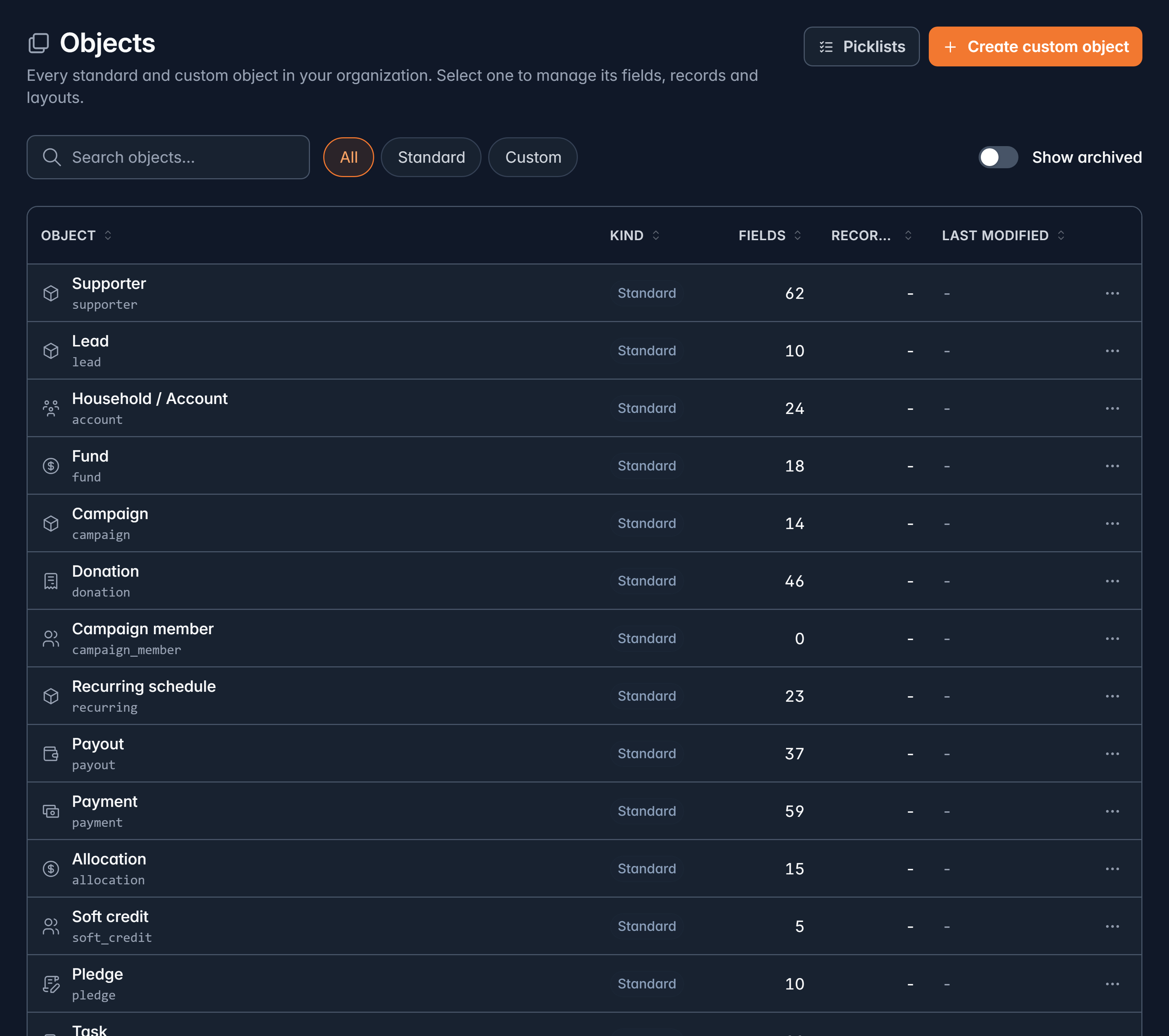
Settings > Objects is where you shape Givable around your work: add fields to what's already there, or invent whole new things to track.
Before you start: fields need permission to edit custom fields; new objects need permission to manage custom objects. Both are administrator territory.
Add a field
Open an object, go to Fields, and add one. Field types available:
| Type | For |
|---|---|
| Text, Long text | Names, notes |
| Email, Phone, URL | Contact details |
| Number, Currency, Percent | Figures |
| Date, Date + time | When something happened |
| Yes / no | A flag |
| Single choice, Multi choice | A fixed set of options |
| Lookup | A link to another record |
| Address | A postal address |
| Formula | A value worked out from other fields |
| Rollup summary | A total, count or average across related records |
Rollups are the quiet favorite: count a supporter's gifts, sum what a campaign raised, take the largest gift someone has ever given, and then filter and sort on it like any other field.
Each field can carry help text, be required, track its history, and be marked as sensitive.
A field's type and its internal name are permanent. You can rename the label anyone sees, but not change a text field into a date later. Think for a minute before creating one, especially about whether it should be a choice list rather than free text.
Never put card numbers in a field. Givable says so on the page, and it's worth repeating.
Shared choice lists
Picklists (from the Objects page) define option sets once and reuse them on many fields: your program areas, regions, referral sources.
Renaming a value changes the label everywhere without disturbing the records already using it, and retiring one stops it being chosen without rewriting history.
Custom objects
When you need to track something Givable doesn't have, create an object for it: grants, volunteer shifts, partner organizations, equipment loans.
You give it a label, a plural, an icon and a short prefix for its record IDs. It gets its own records, its own fields and its own page layout, and can be reported on like anything else.
A new custom object is hidden until you place it. Use the Navigation tab to decide where it appears in the sidebar: top level, inside an existing group, or not at all.
Record types
Accounts, supporters and donations can have record types: a way to distinguish grants from individual gifts, or households from foundations. Each has a name and a code, and can be retired when it's no longer used.
Tags
Settings > Tags manages the labels you put on supporters, accounts and leads. A tag is more than a sticker: it's a filter everywhere those records are filtered, including in dynamic lists and automations, and adding or removing one can start a journey.
Where your new fields show up
Once a field exists, you can:
- Place it on the record page wherever you like. See Page layouts.
- Add it as a column on any list view, and filter and sort on it.
- Use it in a merge field in emails, if you allow it.
- Report on it like any built-in field.
Add fields sparingly, and delete the ones nobody fills in. Every extra field is something a colleague has to skip past on a record page, and a question somebody eventually asks you to explain.
Still stuck?
We're here for you, and no question is too small. Tell us what you were trying to do and what happened, and we'll help you get it sorted.